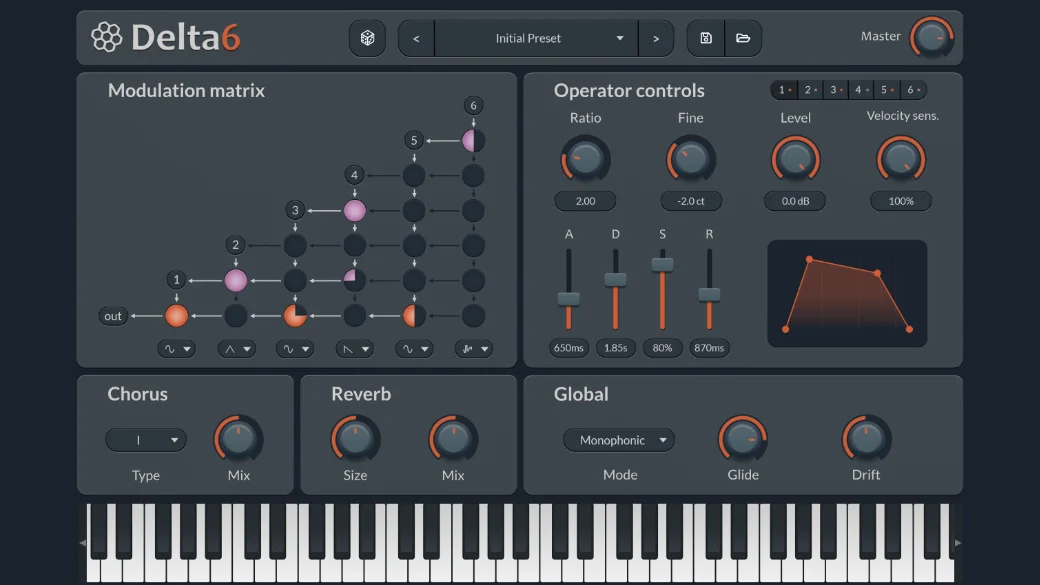
Delta6 is a 6-operator FM synthesizer built around a fully open modulation matrix instead of a locked list of algorithms. This guide walks through every knob and dial so you can start building your own patches from scratch.
The Modulation Matrix
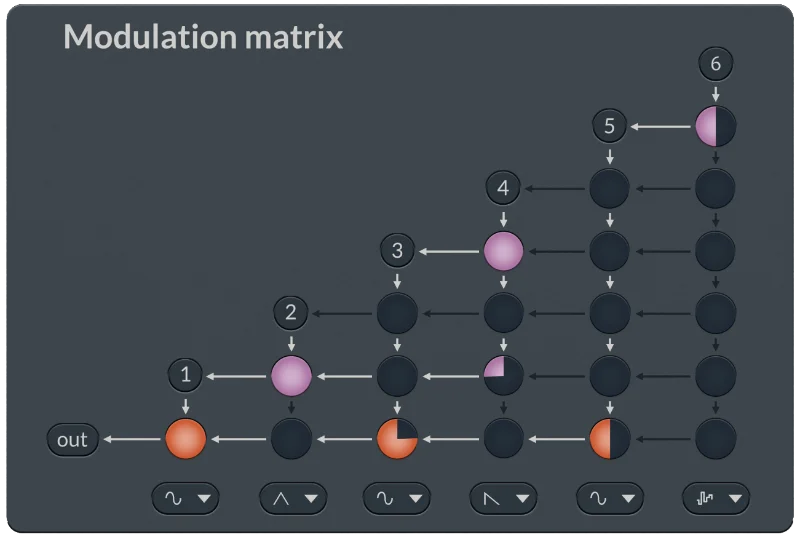
This is the real difference between Delta6 and a classic algorithm-based FM synth. Instead of picking from a fixed list of routings, you get a grid of 15 modulation dials and wire up operators however you want.
The Basic Layout
The matrix is a 6x6 grid shaped like a triangle. This triangle enforces one simple rule: Modulation only flows downhill.
A higher-numbered operator can only affect a lower-numbered one. The columns represent the source operator doing the modulating, while the rows represent the target operator receiving the modulation.
Quick Controls
Click a knob to instantly snap it between 0% and 100%, or drag it to adjust the amount precisely.
Visual Helpers: Glowing Arrows
You don’t have to guess how your sound is routing. Whenever you turn a knob, glowing arrows light up to show the exact path the signal is taking through the grid.
Color Coding
Before reading the grid, look at the colors of your operators. Delta6 uses two simple colors to tell you an operator’s job at a glance:
- Red = Carrier: This operator is generating sound that goes directly to your speakers.
- Pink = Modulator: This operator is modulating another operator.
How to Read the Grid
While the glowing arrows do the heavy lifting visually, it helps to know the logic behind the grid:
Reading Up and Down (What is this operator doing?)
Pick a column. Look down that column. Every knob that is turned up represents a target that this operator is affecting. If the very bottom knob is turned up, it means the operator is not just modulating others, but is also acting as a Carrier sending sound to the output.
Reading Left and Right (What is affecting this operator?)
Pick a row. Look across that row. Any knobs that are turned up tell you exactly which “bigger” operators are currently modulating it.
Waveforms

Each of the 6 operators can generate one of the following five waveforms:
- Sine: The classic FM building block. Clean and pure, closest to the original DX7 sound.
- Triangle: Softer harmonics than a sine, useful for gentler modulation.
- Saw: Bright and buzzy, perfect for adding edge to a carrier or grit when used as a modulator.
- Square: Hollow and reedy, good for basses and percussive tones.
- Noise: No pitch, just texture. Useful for adding impact or chaos.
Operator controls
The Operator Focus Panel

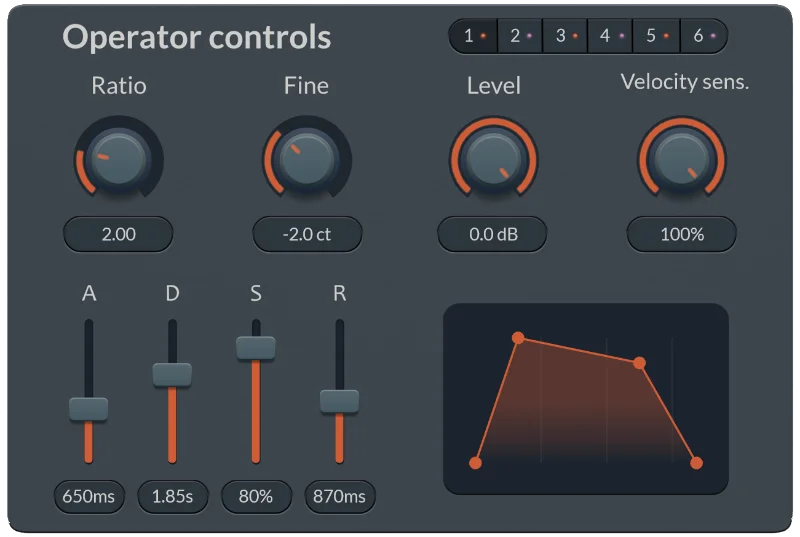
At the top of this panel, you’ll see 6 numbered buttons, each corresponding to an operator. Clicking a number focuses the main parameter panel on that operator, meaning its Shape, Ratio, Envelope, and all other parameters will update to reflect your selection.
The lights next to each number reveal the current state of this operator: red for Carrier, or pink for Modulator.
Ratio & Fine Tune
Ratio (0.5 to 32.0) sets the operator’s pitch relative to the note you play. A ratio of 1.0 tracks the fundamental, 2.0 jumps up an octave, and non-integer ratios like 1.41 give you the bell-like inharmonic tones associated with FM synthesis.
Fine Tune (-100 to 100 cents) allows you to make subtle pitch adjustments on top of the Ratio. Even small values can create beating and phase movement between operators, which is a great trick for making static sounds feel fuller.
Level & Velocity Sensitivity
Level (-60dB to 0dB) is the operator’s base output level before any modulation gets applied to it.
Velocity Sensitivity (0% to 100%) determines how much your keyboard velocity affects that operator’s volume. Push it up for a patch that responds dynamically to how hard you play. Note that this control is available on Operators 1 through 5 only.
Operator Envelope
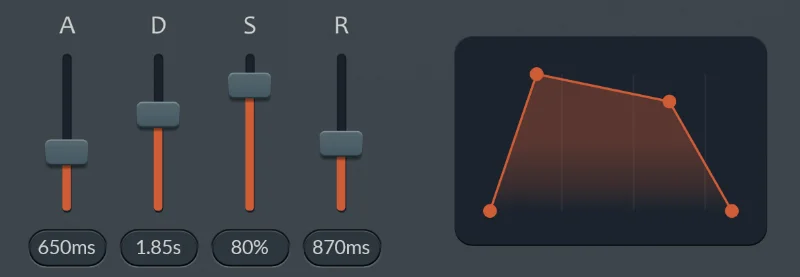
Each operator has its own ADSR envelope, and much of an FM sound’s character comes from here. A modulator with a fast envelope can create that punchy “impact” at the beginning of a note.
- Attack (1ms – 5s): Time to reach peak amplitude.
- Decay (1ms – 5s): Time to fall from the peak to the sustain level.
- Sustain (0% – 100%): The level held while the key remains pressed.
- Release (1ms – 5s): Time to fade out once the key is released.
The Live ADSR Visualizer next to the sliders draws the actual curve in real time as you drag, allowing you to see exactly what shape you’re creating.
Operator 6 Feedback
Operator 6 has one control the others don’t: Feedback (0% to 100%). It routes the operator’s output back into itself. At lower settings, it can transform an ordinary sine wave into something resembling a rounded saw wave. Keep increasing the feedback, and the sound eventually enters a completely chaotic state.
Global Controls
Mode & Glide
Mode toggles Delta6 between Polyphonic (up to 16 voices) and Monophonic (mono-legato).
Glide (0s – 2.0s) controls the portamento time between notes. This parameter is only active in Monophonic mode.
Drift
Drift (0% to 100%) introduces subtle analog-style pitch variations across all operators. Digital FM engines can sometimes sound overly clean and lifeless. Adding a little Drift is often enough to make the synthesizer sound warmer, wider, and more organic.
Effects
Chorus
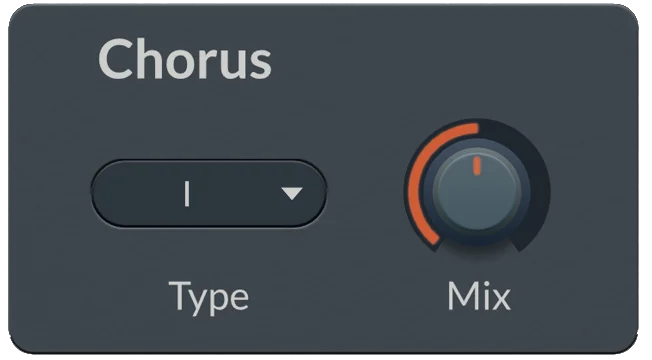
Based on classic 1980s Bucket-Brigade Chorus circuits, the chorus effect is perfect for widening FM sounds.
- Type: Choose between I (subtle shimmer), II (deep modulation), or I+II (thick and slightly chaotic).
- Chorus Mix (0% – 100%): Dry/wet blend.
Reverb Engine
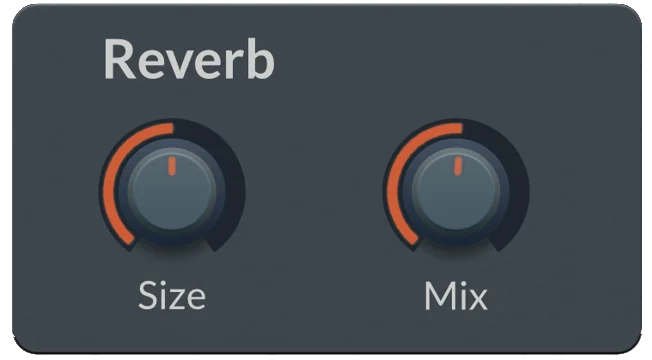
The built-in reverb engine allows you to add space to your sounds.
- Reverb Size (0.1s – 10.0s): Controls the decay length of the reverb tail.
- Reverb Wet (0% – 100%): Volume of the wet signal.
Top Bar

Preset Browser
Use the left and right arrows to browse factory presets, or click the dropdown menu to choose them directly to a specific category. Use the Save and Load buttons to start building your own preset library.
The Dice Button
The dice button allows you to generate a random preset. But Delta6 doesn’t simply generate a random pile of parameters. Instead, it selects a specific sound archetype (Pad, Pluck, Keys, or Lead) and intelligently builds the ratios, routings and envelopes.
This is a great way to break through creative blocks, or simply to use it as a starting point that you can continue tweaking and transforming until you create a sound of your own.
Master Out
The final output volume for the entire plugin, ranging from -60dB to +6dB.
That’s it!
You now have a complete map of every knob and control in Delta6. But reading about FM isn’t the same as doing it. The real magic happens once you start stacking modulators, drawing envelopes, and watching the matrix light up in response.
Go open Delta6, break away from the algorithms, and build something nobody has heard before.