
Marimbox is a sampled marimba instrument designed for musicians and producers who want an organic wooden sound without leaving their DAW. It gives you five real playing styles, a built-in delay and reverb, and an interface you can play straight from your screen. This guide will walk you through every control so you can start making mallets sing.
Articulations
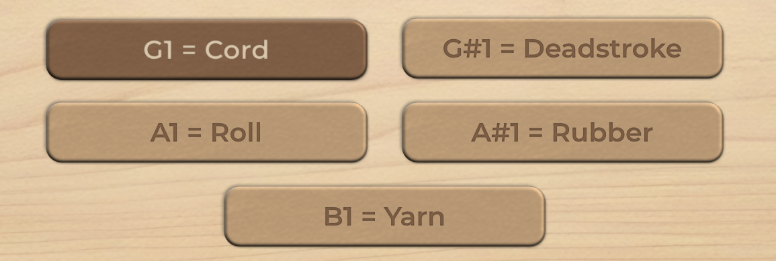
Articulation Selector
The grid at the top center of the interface lets you choose how the marimba is struck. Click a button and every new note you play will use that sample set. Each style has its own personality:
- Cord: Cord-wound mallets. A warm, balanced tone with a medium attack. A great all-rounder.
- Deadstroke: The mallet stays pressed on the bar after the hit, which cuts the sustain and adds punch. Perfect for dry, rhythmic parts.
- Roll: A fast, sustained tremolo. This is the one to reach for when you need long, flowing notes. (Locked in the Lite edition. Clicking it opens an upgrade window.)
- Rubber: Rubber mallets give a round, punchy and very distinct attack. It cuts through a mix easily.
- Yarn: Soft yarn mallets with a mellow, resonant sound and gentler high harmonics. Great for slow, intimate melodies.
MIDI Keyswitches

The real magic happens here. Instead of clicking, you can change articulation straight from your MIDI clip or keyboard, and the switch is sample-accurate.
The red notes just below the lowest playable marimba bar are your keyswitches. With the lowest marimba note at C2, the five notes below it (G1 to B1) select Cord, Deadstroke, Roll, Rubber and Yarn, in that order.
Keyswitch notes never make any sound themselves, so you won’t get accidental thuds. Notes outside the playable range are filtered out as well.
Playing

Voices
At the top middle you’ll find the voice counter, which sets the maximum number of notes that can ring at once, from 1 to 64. You can change it in three ways:
- Drag up or down on the number.
- Click it, type a value, and press Enter to confirm (Escape cancels).
- Automate it from your DAW like any other parameter.
Set it to 1 for single-note lines. Go high when you’re playing fast two-handed runs with long release times, so earlier notes don’t get cut off.
Shaping the Sound
Attack
This vertical fader softens the start of each note, from 0% (the natural, instant mallet strike) up to 100% (a fade-in of about 50 ms). Low values keep that crisp wooden hit. Higher values blur the strike into something closer to a pad.
Release
Release controls how long a note rings out after you let go of the key, from 0.001 s to 2 s.
- Short: Tight, staccato cuts.
- Long: Natural ring-outs with overlapping tails.
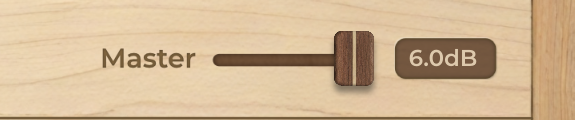
Master Gain
The horizontal slider at the top right sets the output level, from -60 dB (silence) to +6 dB. Use it to balance Marimbox against the rest of your project.
Effects

Echo Time
This is a tempo-synced delay that follows your DAW’s BPM. The slider snaps to musical divisions (1/16, 1/8, 1/4, 1/2, 1/1 and 2/1).
You can also double-click the value and type your own, like 1/4 or 1/8.
Echo Mix
Echo Mix controls how loud the repeats are and how long they last. At 0% the delay is off. Turn it up and the echoes get louder and decay more slowly.
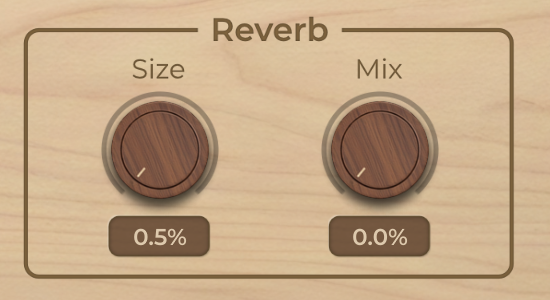
Reverb Size
Reverb Size sets the length of the tail, from a tiny room (about 0.1 s) to a big concert hall (about 5 s).
Reverb Mix
This controls how much reverb is blended in. The dry signal always stays at full level, and the reverb is added on top.
Tips
Keyswitches are persistent, meaning Marimbox stays on whatever articulation was triggered last until a new keyswitch note arrives.
If you are looping a MIDI region in your DAW, always drop a keyswitch note right at the start of the loop. Otherwise, if you change articulations later in your arrangement and jump back, the loop will play with the wrong mallet!
That’s it!
You now know every corner of Marimbox. Time to put those mallets to work and let your creativity run wild. If you haven’t already, grab Marimbox on our store and start playing!