Relica is a powerful tool for creating unique and retro-inspired sounds. In this guide, you will learn exactly how to use it’s various features and controls in order to create an unique, 8-bit sound.
Oscillator Shapes
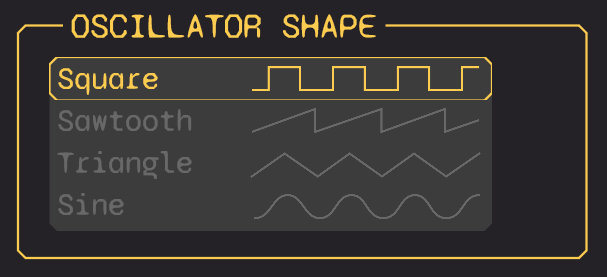
The Oscillator Shape section allows you to choose the sound wave that generates your sound. Each shape has a unique timbre:
- Square: Makes a buzzy, hollow sound. Perfect for retro and video game music.
- Sawtooth: Produces a bright, full sound. Great for melodies and bass lines.
- Triangle: Creates a smooth, soft sound. Ideal for gentle tones.
- Sine: Offers a pure, clean sound. Best for soft basses and smooth pads.
To select a waveform, simply click on the desired shape from the list.
Dynamics
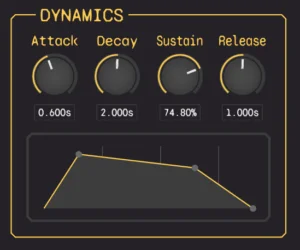
This section shapes the volume of the sound over time, using four stages:
- Attack: Time for the sound to reach full volume after a key press. A short attack gives a sharp, instant sound, while a long attack fades in.
- Decay: Time taken by the sound to drop to the sustain level after the attack phase.
- Sustain: The level at which the sound holds while the key is pressed. It’s a percentage of the maximum volume.
- Release: Time for the sound to fade out after the key is released.
Bitcrusher

The bitcrusher effect reduces the bit depth and sample rate of your audio signal, giving it a gritty, lo-fi character.
The knob adjust the intensity of the effect. Higher values produce more distortion and aliasing, creating a vintage digital sound.
Pulse Width

The knob modifies the balance between the “on” and “off” parts of a wave cycle. By adjusting this knob, you can change the tone, making it sharper or softer. Experiment with different settings to find the perfect character for your sound.
Vibrato
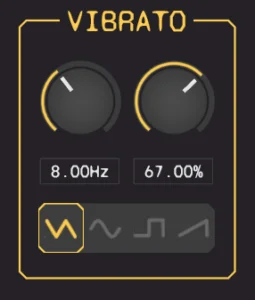
Vibrato adds a slight pitch variation to your sound, creating a wobbling effect. This feature can be applied to any waveform. You can control:
- Rate: How fast the pitch oscillates. A higher rate results in a faster wobble.
- Depth: How much the pitch changes. A greater depth makes the wobble more noticeable.
- LFO Shape: The pattern of the pitch change. Different shapes create different types of wobbles, from smooth and flowing to sharp and choppy.
Using these controls, you can give your sound a subtle movement or a more dramatic, wavy effect.
That’s it!
With these features and controls at your fingertips, you’re all set to create retro songs with Relica (for free!).
Start exploring and let your imagination guide you!